Deploy a Secure Research Environment#
These instructions will deploy a new Secure Research Environment (SRE).
Note
As the Basic Application Gateway is still in preview, you will need to run the following commands once per subscription:
$ az feature register --name "AllowApplicationGatewayBasicSku" \
                      --namespace "Microsoft.Network" \
                      --subscription NAME_OR_ID_OF_YOUR_SUBSCRIPTION
$ az provider register --name Microsoft.Network
Also, for supporting Container App Jobs, please register the additional resource providers by running these commands:
$ az provider register --name Microsoft.App
$ az provider register --name Microsoft.ContainerService
Requirements#
An Azure subscription where you will deploy your infrastructure.
An account with at least Owner role over the scope of the subscription.
Configuration#
Each project will have its own dedicated SRE.
Create a configuration file (optionally starting from one of our standard Sensitivity tiers)
The dsh config template command provides template configuration files
EITHER start from a blank template
$ dsh config template --file PATH_YOU_WANT_TO_SAVE_YOUR_YAML_FILE_TO
OR start from a predefined tier
$ dsh config template --file PATH_YOU_WANT_TO_SAVE_YOUR_YAML_FILE_TO \
                      --tier TIER_YOU_WANT_TO_USE
Edit this file in your favourite text editor, replacing the placeholder text with appropriate values for your setup.
Example YAML configuration file
azure:
  location: # Azure location where SRE resources will be deployed
  subscription_id: # ID of the Azure subscription that the TRE will be deployed to
  tenant_id: # Home tenant for the Azure account used to deploy infrastructure: `az account show`
description: # A free-text description of your SRE deployment
dockerhub:
  access_token: # The password or personal access token for your Docker Hub account. We strongly recommend using a Personal Access Token with permissions set to Public Repo Read-only
  username: # Your Docker Hub account name
name: # A name for your SRE deployment containing only letters, numbers, hyphens and underscores
sre:
  admin_email_address: # Email address shared by all administrators
  admin_ip_addresses: # List of IP addresses belonging to administrators
  allow_workspace_internet: # True/False: whether to allow outbound internet access from workspaces. WARNING setting this to True will allow data to be moved out of the SRE WITHOUT OVERSIGHT OR APPROVAL
  data_provider_ip_addresses: # List of IP addresses belonging to data providers
  databases: # List of database systems to deploy
  remote_desktop:
    allow_copy: # True/False: whether to allow copying text out of the environment
    allow_paste: # True/False: whether to allow pasting text into the environment
  research_user_ip_addresses:
    - # List of IP addresses belonging to users
    - # You can also use the tag 'Internet' instead of a list
  software_packages: # Which Python/R packages to allow users to install: [any/pre-approved/none]
  storage_quota_gb:
    home: # Total size in GiB across all home directories
    shared: #Total size in GiB for the shared directories
  timezone: # Timezone in pytz format (eg. Europe/London)
  workspace_skus: # List of Azure VM SKUs that will be used for data analysis.
Configuration guidance#
Choosing an Azure region#
Some of the SRE resources are not available in all Azure regions.
Workspace virtual machines use zone redundant storage managed disks which have limited regional availability.
Some shares mounted on workspace virtual machines require premium file shares which have limited regional availability.
Supported Azure regions
The regions which satisfy all requirements are,
Australia East
Brazil South
Canada Central
Central India
China North 3
East Asia
East US
East US 2
France Central
Germany West Central
Israel Central
Italy North
Japan East
Korea Central
North Europe
Norway East
Poland Central
Qatar Central
South Africa North
South Central US
Southeast Asia
Sweden Central
Switzerland North
UAE North
UK South
US Gov Virginia
West Europe
West US 2
West US 3
Choosing a VM SKU#
Hint
See here for a full list of valid Azure VM SKUs.
Important
All VM SKUs you deploy must support premium SSDs.
Important
All VM SKUs you deploy must have CPUs with the x86_64 architecture.
SKUs with a lower case ‘p’ in their name have the ARM architecture and should not be used.
See here for a full naming convention explanation.
Important
The antivirus process running on each workspace consumes around 1.3 GiB at idle. This usage will roughly double for a short period each day while its database is updated.
You should take this into account when choosing a VM size and pick an SKU with enough memory overhead for your workload and the antivirus service.
Important
Only GPUs supported by CUDA and the Nvidia GPU drivers can be used. ‘N’ series SKUs feature GPUs. The NC and ND families are recommended as they feature GPUs designed for general purpose computation rather than graphics processing.
There is no key to distinguish SKUs with Nvidia GPUs, however newer SKUs contain the name of the accelerator.
Hint
Picking a good VM size depends on a lot of variables. You should think about your expected use case and what kind of resources you need.
As some general recommendations,
For general purpose use, the D family gives decent performance and a good balance of CPU and memory. The Dsv6 series is a good starting point and can be scaled from 2 CPUs and 8 GB RAM to 128 CPUs and 512 GB RAM.
Standard_D8s_v5should give reasonable performance for a single concurrent user.
For GPU accelerated work, the NC family provides Nvidia GPUs and a good balance of CPU and memory. In order of increasing throughput, the
NCv3series features Nvidia V100 GPUs, theNC_A100_v4series features Nvidia A100 GPUs, and theNCads_H100_v5series features Nvidia H100 GPUs.Stanard_NC6s_v3should give reasonable performance for a single concurrent user with AI/ML workloads. Scaling up in the same series (for exampleStandard_NC12s_v3) gives more accelerators of the same type. Alternatively a series with more recent GPUs should give better performance.
Copy and paste#
The Guacamole clipboard provides an interface between the local clipboard and the clipboard on the remote workspaces. Only text is allowed to be passed through the Guacamole clipboard.
The ability to copy and paste text to or from SRE workspaces via the Guacamole clipboard can be controlled with the DSH configuration parameters allow_copy and allow_paste.
allow_copy allows users to copy text from an SRE workspace to the Guacamole clipboard.
allow_paste allows users to paste text into an SRE workspace from the Guacamole clipboard.
These options have no impact on the ability to use copy and paste within a workspace.
The impact of setting each of these options is detailed in the following table.
| allow_copy | allow_paste | Copy/paste within workspace | Copy/paste between workspaces | Copy to local machine | Paste from local machine |
|---|---|---|---|---|---|
| true | true | yes | yes (via local machine) | yes | yes |
| true | false | yes | no | yes | no |
| false | true | yes | no | no | yes |
| false | false | yes | no | no | no |
Important
For controlling clipboard access, DSH relies entirely on the functionality offered by Guacamole. To the best of our knowledge, it is not possible to egress information from a remote workspace to a user computer when Guacamole’s clipboard controls are in place. However, at the moment of writing, it is possible to circumvent these controls to ingress data from a user’s computer into the remote workspace. If ingress control is critical for your use case, we strongly recommend implementing policy and training controls given these technical control limitations.
Upload the configuration file#
Upload the config to Azure. This will validate your file and report any problems.
$ dsh config upload PATH_TO_YOUR_EDITED_YAML_FILE
Hint
If you want to make changes to the config, edit this file and then run dsh config upload again
Deployment#
Deploy each SRE individually using dsh sre deploy [approx 30 minutes]:
$ dsh sre deploy YOUR_SRE_NAME
Important
After deployment, you may need to manually ensure that backups function.
In the Azure Portal, navigate to the resource group for the SRE: shm-SHM_NAME-sre-SRE_NAME-rg
Navigate to the backup vault for the SRE: shm-SHM_NAME-sre-SRE_NAME-bv-backup
From the side menu, select
Change Datasource type to Azure Blobs (Azure Storage)
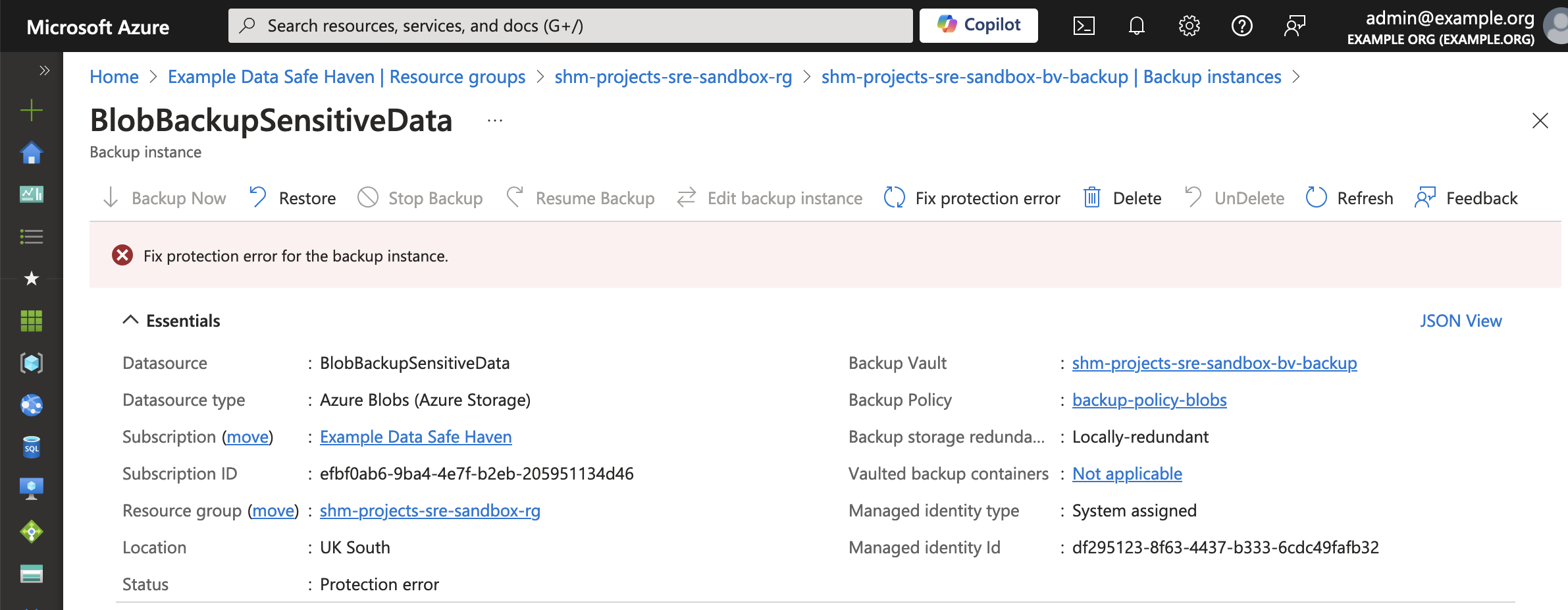
Select the BlobBackupSensitiveData instance
If you see the message Fix protection error for the backup instance, as pictured below, then click the Fix protection error button.