

Managing data ingress and egress#
Data ingress#
It is the Dataset Provider Representative’s responsibility to upload the data required by the safe haven.
The following steps show how to generate a temporary, write-only upload token that can be securely sent to the Dataset Provider Representative, enabling them to upload the data:
In the Azure portal select Subscriptions then navigate to the subscription containing the relevant SHM
Search for the resource group:
shm-<YOUR_SHM_NAME>-sre-<YOUR_SRE_NAME>-rg, then click through to the storage account ending withsensitivedataBrowse to and ensure that the data provider’s IP address is one of those allowed under the Firewall header
If it is not listed, modify and reupload the SRE configuration and redeploy the SRE using the
dshCLI, as per Deploy a Secure Research Environment
Browse to from the menu on the left hand side
Click ingress
Browse to and do the following:
Under Signing method, select User delegation key
Under Permissions, check these boxes:
Write
List
Set a 24 hour time window in the Start and expiry date/time (or an appropriate length of time)
Leave everything else as default and click Generate SAS token and URL
Copy the Blob SAS URL
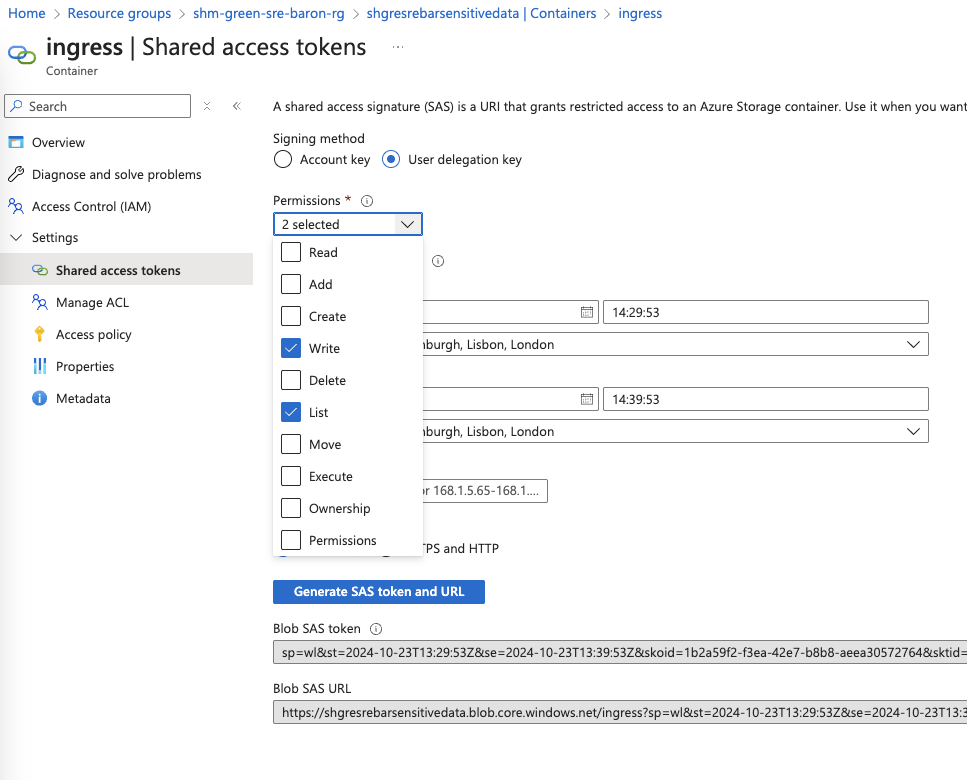
Send the Blob SAS URL to the data provider through a secure channel
The data provider should now be able to upload data
Validate successful data ingress
Browse to (in the middle of the page)
Select the ingress container and ensure that the uploaded files are present
Data egress#
Important
Assessment of output must be completed before an egress link is created. Outputs are potentially sensitive, and so an appropriate process must be applied to ensure that they are suitable for egress.
The System Manager creates a time-limited and IP restricted link to remove data from the environment.
In the Azure portal select Subscriptions then navigate to the subscription containing the relevant SHM
Search for the resource group:
shm-<YOUR_SHM_NAME>-sre-<YOUR_SRE_NAME>-rg, then click through to the storage account ending withsensitivedataBrowse to and check the list of pre-approved IP addresses allowed under the Firewall header
Ensure that the IP address of the person to receive the outputs is listed
If it is not listed, modify and reupload the SRE configuration and redeploy the SRE using the
dshCLI, as per Deploy a Secure Research Environment
Browse to
Select the egress container
Browse to and do the following:
Under Signing method, select User delegation key
Under Permissions, check these boxes:
Read
List
Set a time window in the Start and expiry date/time that gives enough time for the person who will perform the secure egress download to do so
Leave everything else as default and press Generate SAS token and URL
Copy the Blob SAS URL
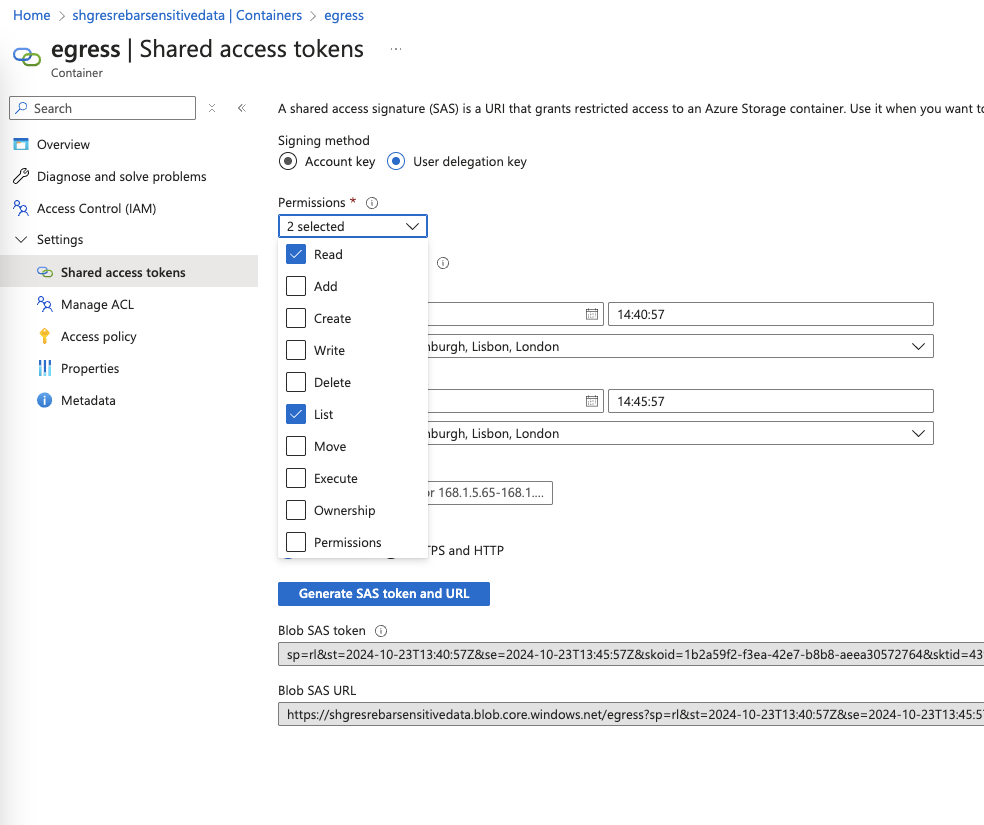
Send the Blob SAS URL to the relevant person through a secure channel
The appropriate person should now be able to download data
The output volume#
Once you have set up the egress connection in Azure Storage Explorer, you should be able to view data from the output volume, a read-write area intended for the extraction of results, such as figures for publication.
On the workspaces, this volume is /mnt/output and is shared between all workspaces in an SRE.
For more information on shared SRE storage volumes, consult the Safe Haven User Guide.